Introducing Stencilbar
Stencilbar is a macOS menu bar app I built to store reusable AI prompts and copy them fast.
Contents
I’ve been using AI tools a lot lately, and I kept wanting a way to quickly grab the prompts I reuse. For certain tasks, I find a good prompt helps a lot more than having a dedicated skill, and skills can also clutter the context. A prompt is just text. I paste it in when I need it, and it’s gone when I don’t.
So, I built Stencilbar. It’s a macOS menu bar app for storing prompts and copying them fast. Today, I want to go over how it works and some of my favorite features. Let’s get started!
How It Works
Stencilbar lives in your menu bar. Press the hotkey from any app, which is Command-Option-P by default, and the search popover opens.
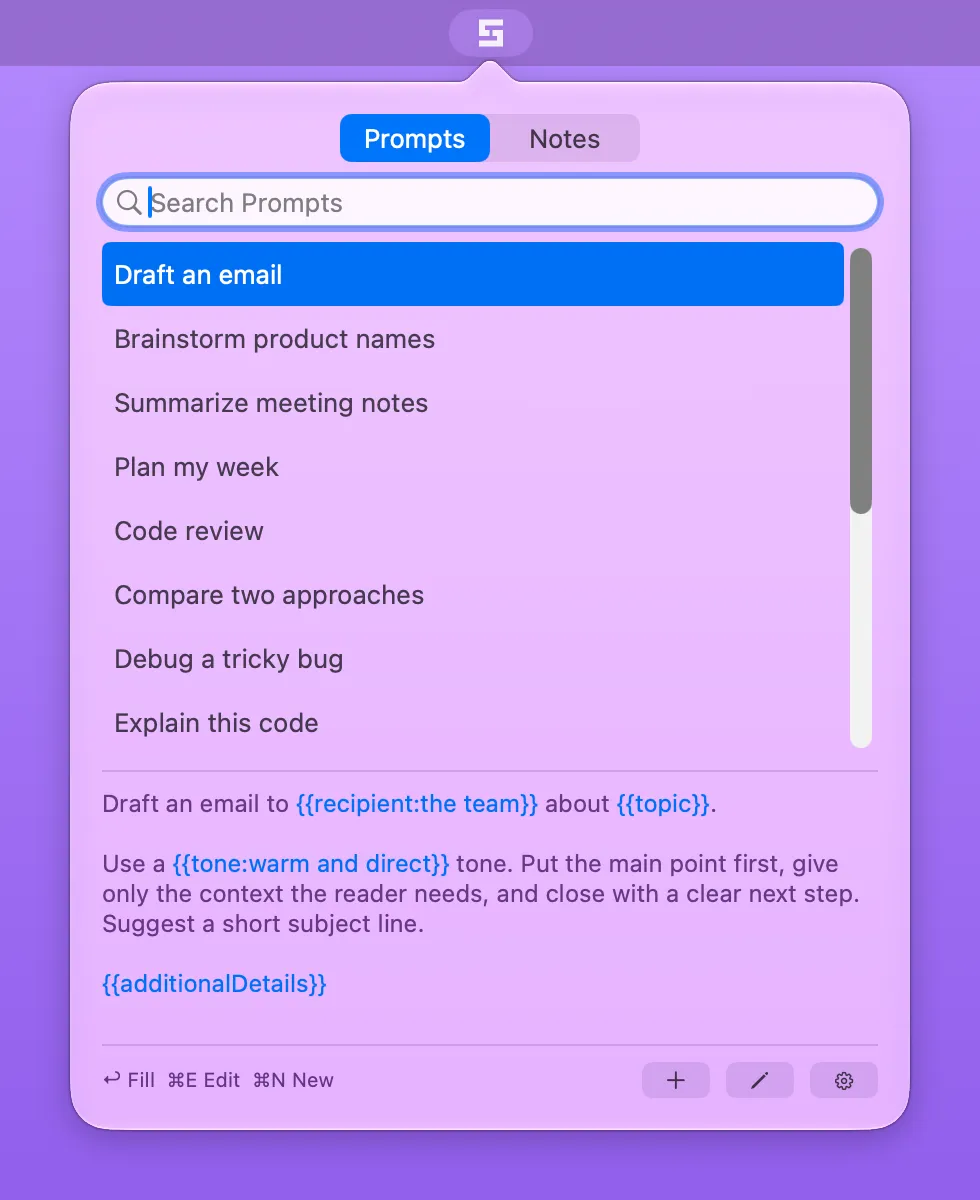
Start typing a few letters and the results update as you go. It’s a fuzzy search, and it matches both the title and the body of each prompt. Use the arrow keys to change the selection, and you get a preview of the prompt right below the results.
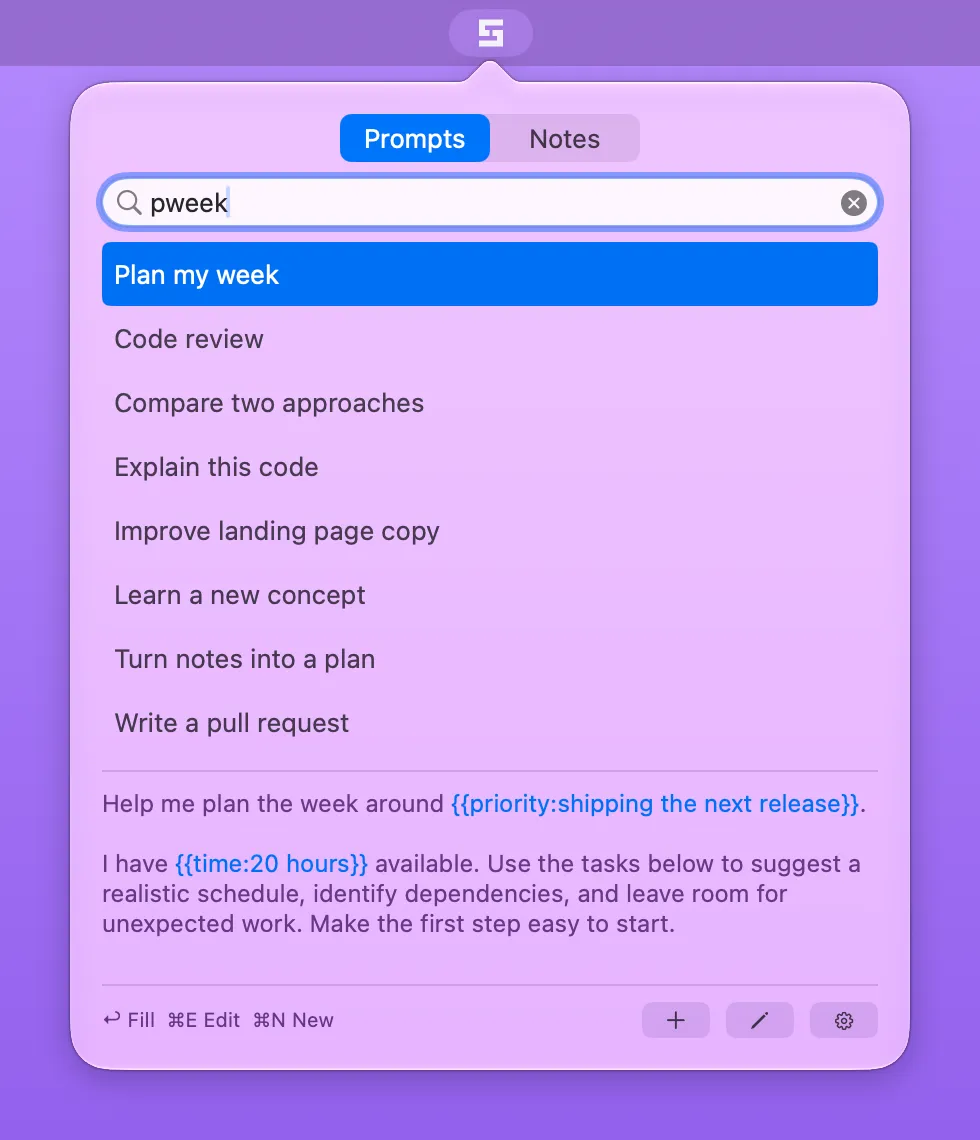
In the screenshot above, typing pweek is enough to find “Plan my week”.
Press Return to open the prompt, check the preview, then press Command-Return to send it on its way. I can do the whole thing without touching the mouse.
With a blank search, Stencilbar shows the last five prompts you copied first, so the ones you use the most are usually right at the top.
Placeholders
This is the feature I use the most. A lot of my prompts are almost the same every time, with one or two things that change. In Stencilbar, you write those as placeholders using {{name}}, or {{name:default}} if you want a default value.
Draft an email to {{recipient:the team}} about {{topic}}.

Use a {{tone:warm and direct}} tone. Put the main point first, give only the context the reader needs, and close with a clear next step. Suggest a short subject line.

{{additionalDetails}}
When you open this prompt, Stencilbar shows one row for each placeholder. The recipient and tone rows are prefilled with their defaults, and topic and additionalDetails start empty. Each name only gets one row, and the value fills every place the placeholder appears.
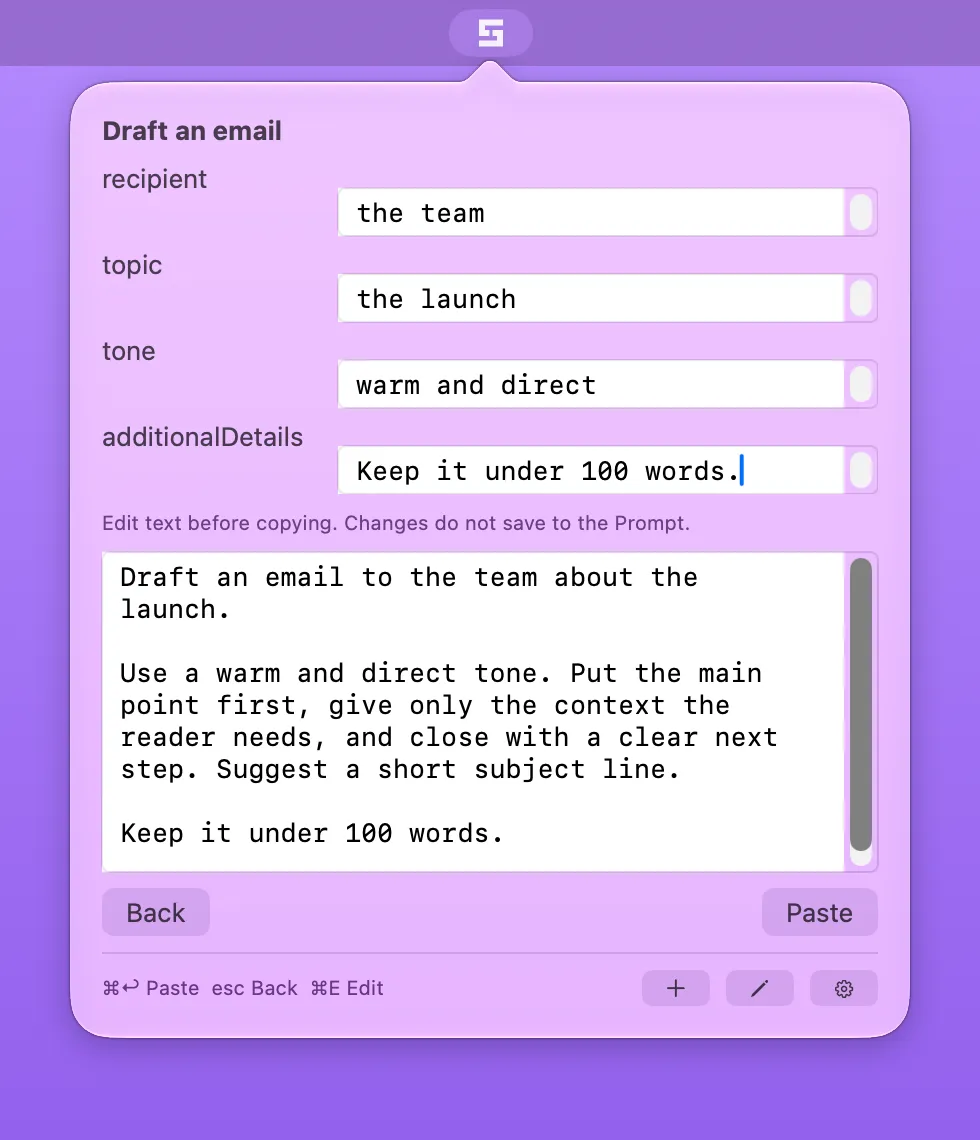
The preview updates as you type, so you always see the final text before it goes anywhere. If you leave a value empty, the preview uses the default. If there is no default, it leaves the placeholder as written, like {{topic}}, so you can see what you missed.
You can also edit the preview directly. This is great for those one-off changes where the prompt is almost right. Those edits only go to the clipboard and never change the prompt itself.
Auto-Paste
By default, Command-Return copies the text, takes you back to the window you were in, and pastes it for you. The first time, macOS will ask for Accessibility permission, since that is what lets Stencilbar send the paste.
If Stencilbar can’t confirm the original window is still there, it skips the paste and lets you know the text was copied, so you can paste it yourself.
If you would rather paste on your own, turn off “Automatically paste after copying” in Settings. Then you get a Copy button that only copies and returns focus.
Your Prompts Are Just Files
Each prompt is a Markdown file. The filename is the title, and the whole file is the prompt text. By default, they live in ~/.config/stencilbar/prompts/.
I really like this because my prompts aren’t locked inside an app. I can edit them in my editor, keep them in Git, or sync them however I want. In Settings, you can even point Stencilbar to another location, like a folder in iCloud Drive or Dropbox. When a file changes on disk, Stencilbar picks it up.
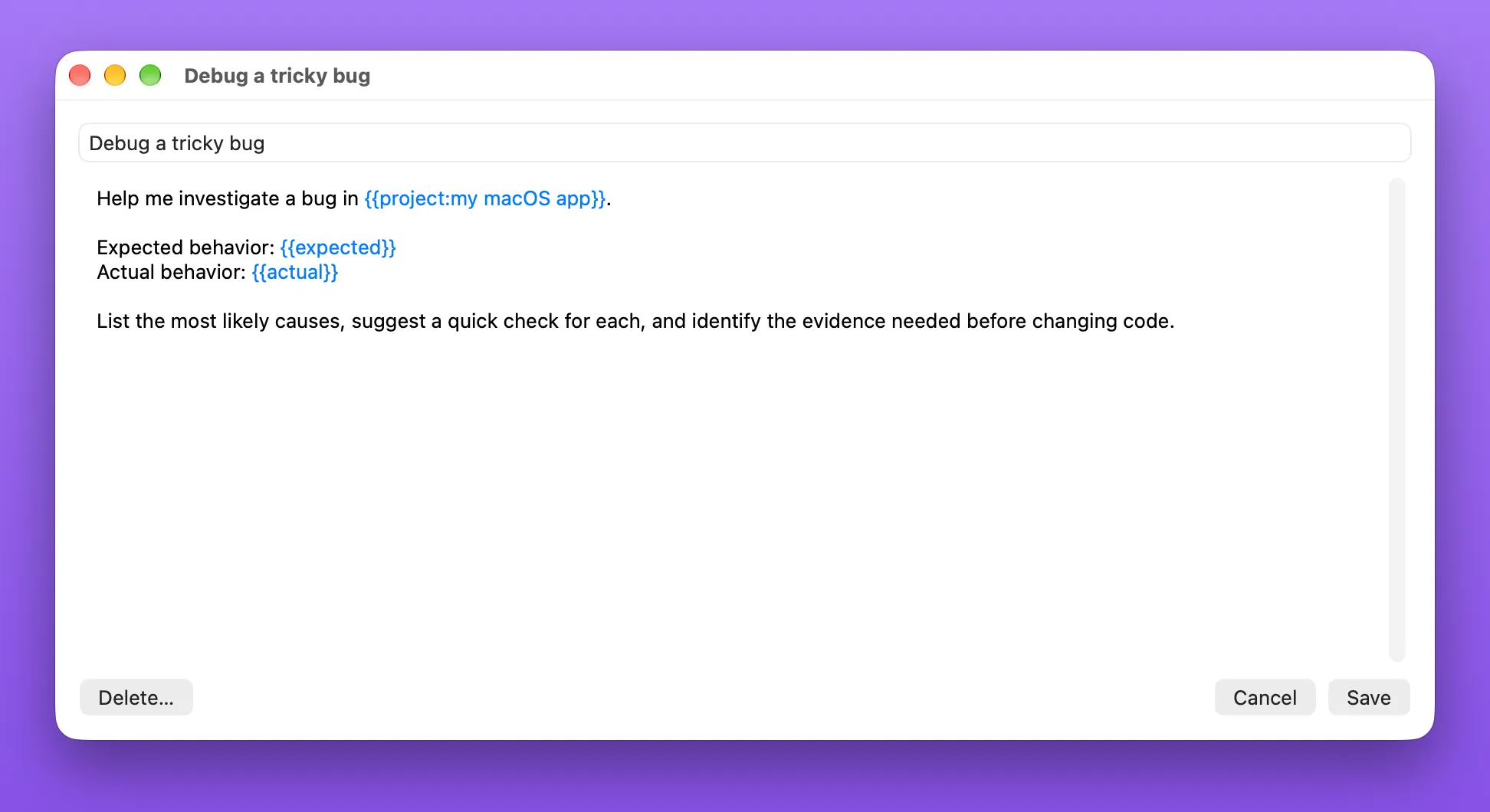
If you don’t want to leave the app, there’s also a built-in editor to create, edit, and delete prompts. It highlights your placeholders, so they are easy to spot.
Notes
Not everything I want to keep nearby is a prompt. Sometimes it’s just reference text I want to look up quickly. That’s what Notes are for.
Notes get their own tab in the popover. Command-1 switches to Prompts and Command-2 switches to Notes. Search works the same way, across titles and bodies, and a blank search shows your most recently modified notes first.
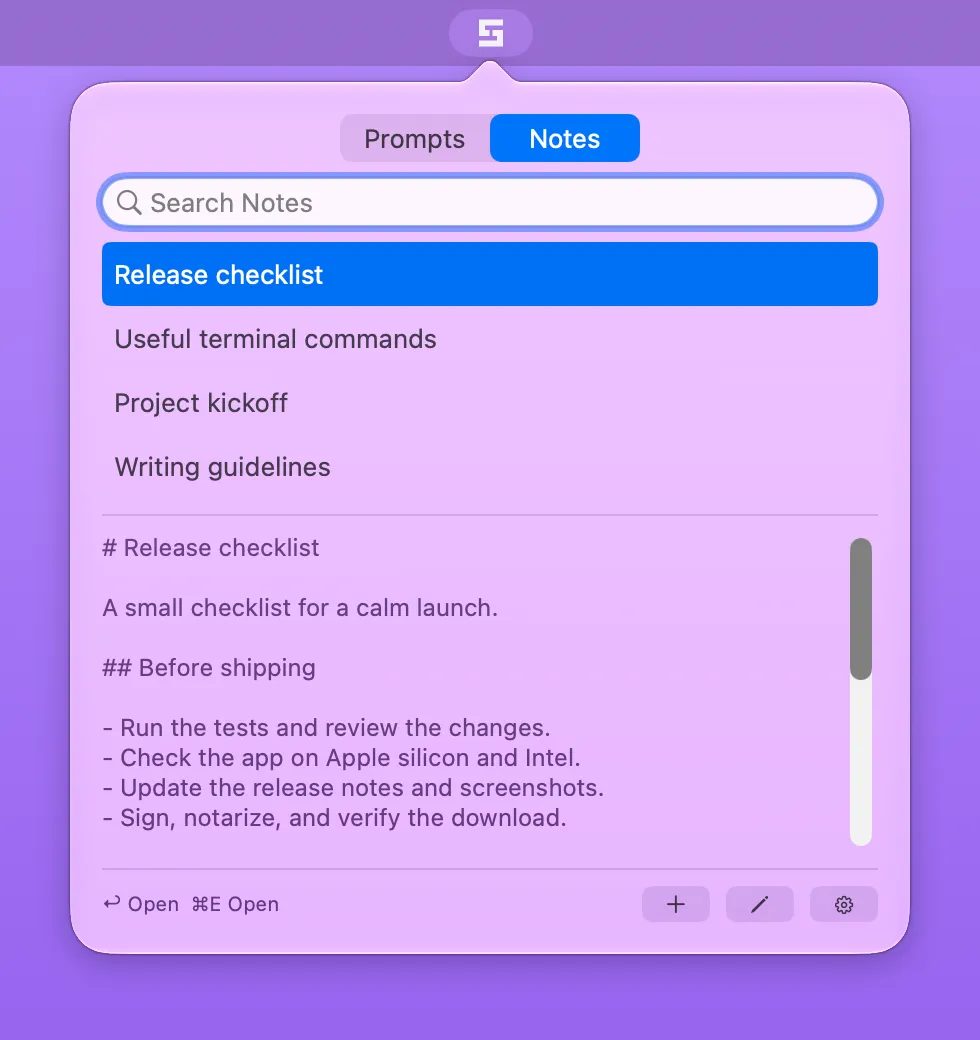
Select a note to preview it, then press Return to open it in its own window. The window stays open while you work, which is great for something like a checklist.
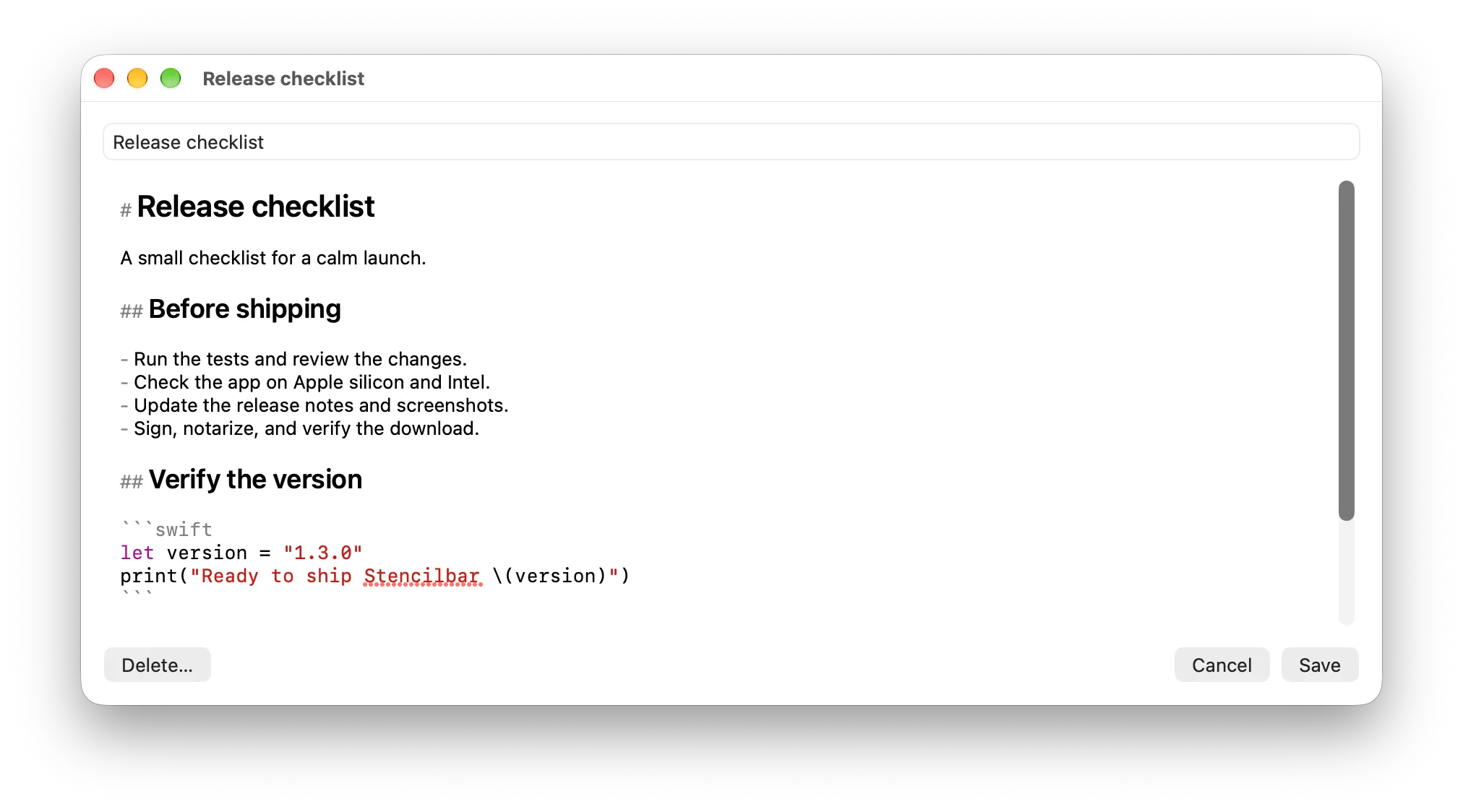
You can create, edit, rename, and delete notes without leaving the app. The editor adds Markdown styling and syntax coloring, so headings and code are easier to scan, but it doesn’t hide the source text. Nothing is saved until you choose Save.
Just like prompts, each note is a Markdown file. By default, they live in ~/.config/stencilbar/notes/, and you can choose another folder in Settings. It’s separate from your prompts folder.
Pricing
Stencilbar is $5 as a one-time purchase, after a free seven-day trial. The trial doesn’t need an account or an email address. You just download the app and start using it.
After you buy, you get a license key to paste into Settings. Activation needs an internet connection once, and after that the app keeps working offline.
Stencilbar requires macOS 15 Sequoia or later. You can download the trial at stencilbar.com.
Final Thoughts
I built Stencilbar to solve my own problem, and now I use it every day. It’s a small app that does one thing, and it has made reusing my prompts a lot faster.
If you give it a try, let me know what you think. I’d love to hear what prompts you keep around or if there’s a feature you’d like to see. Thanks for reading!