Accessing Databases in PhpStorm
Manage databases in PhpStorm with built-in tools for convenience, advanced features like data transposing, and diagram generation
Contents
Did you know PhpStorm can access your databases, and it actually gives you a fantastic UI for managing? I was a long-time TablePlus user, which is a great tool, but lately, I’ve been finding myself using PhpStorm’s built-in tools more and more. It lets me stay right in my editor without having to open and switch to another application. If you are familiar with JetBrains, you may have heard of or even used Datagrip, which is their IDE for databases. Many of those same features from Datagrip are built right into PhpStorm. Today, I want to explain how to get started and some of my favorite features. Let’s get started!
Connecting to the Database
First, I created a simple Laravel application and selected to use a SQLite database. In PhpStorm, pull up the database tools:
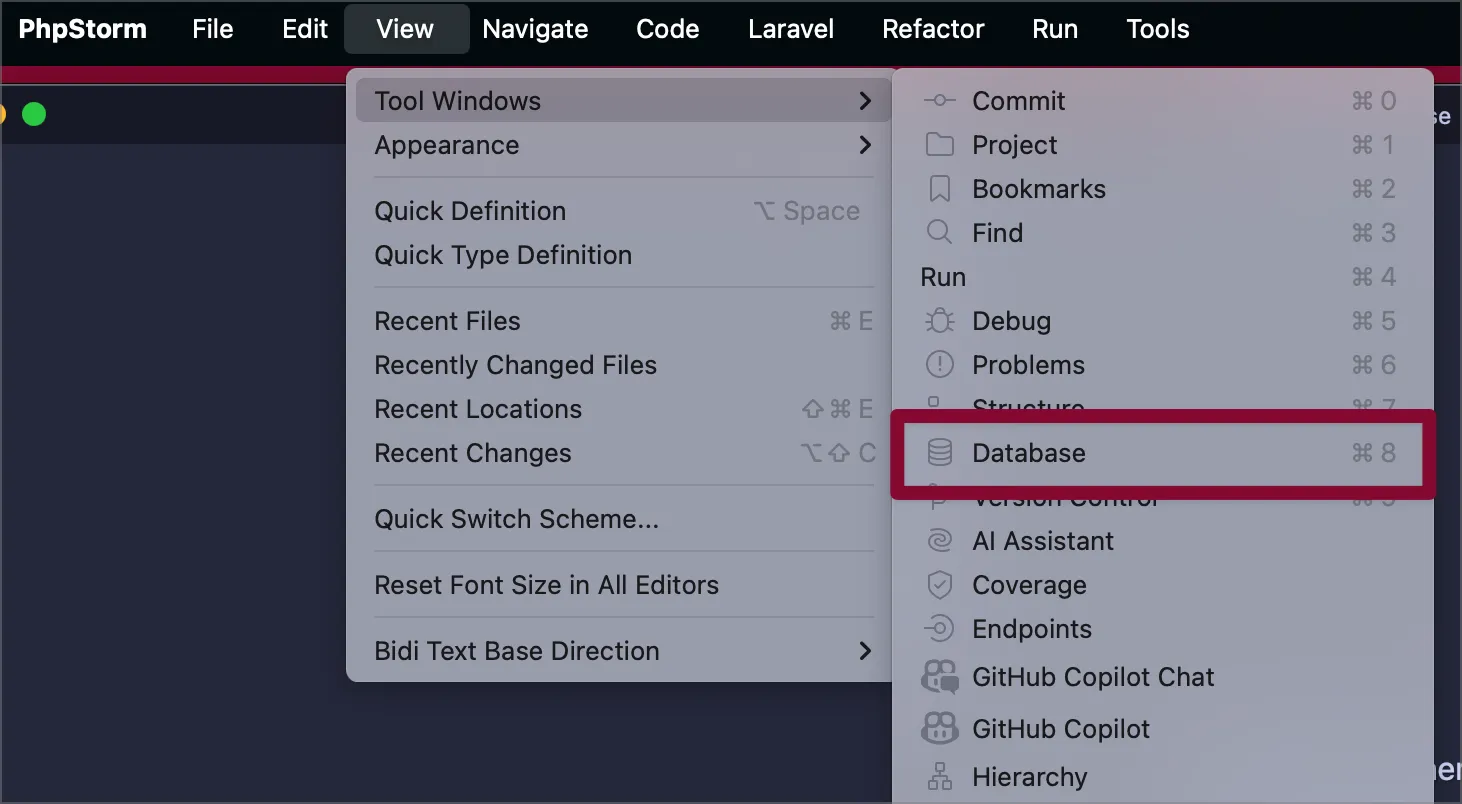
When the tool window appears, we can add our SQLite database:
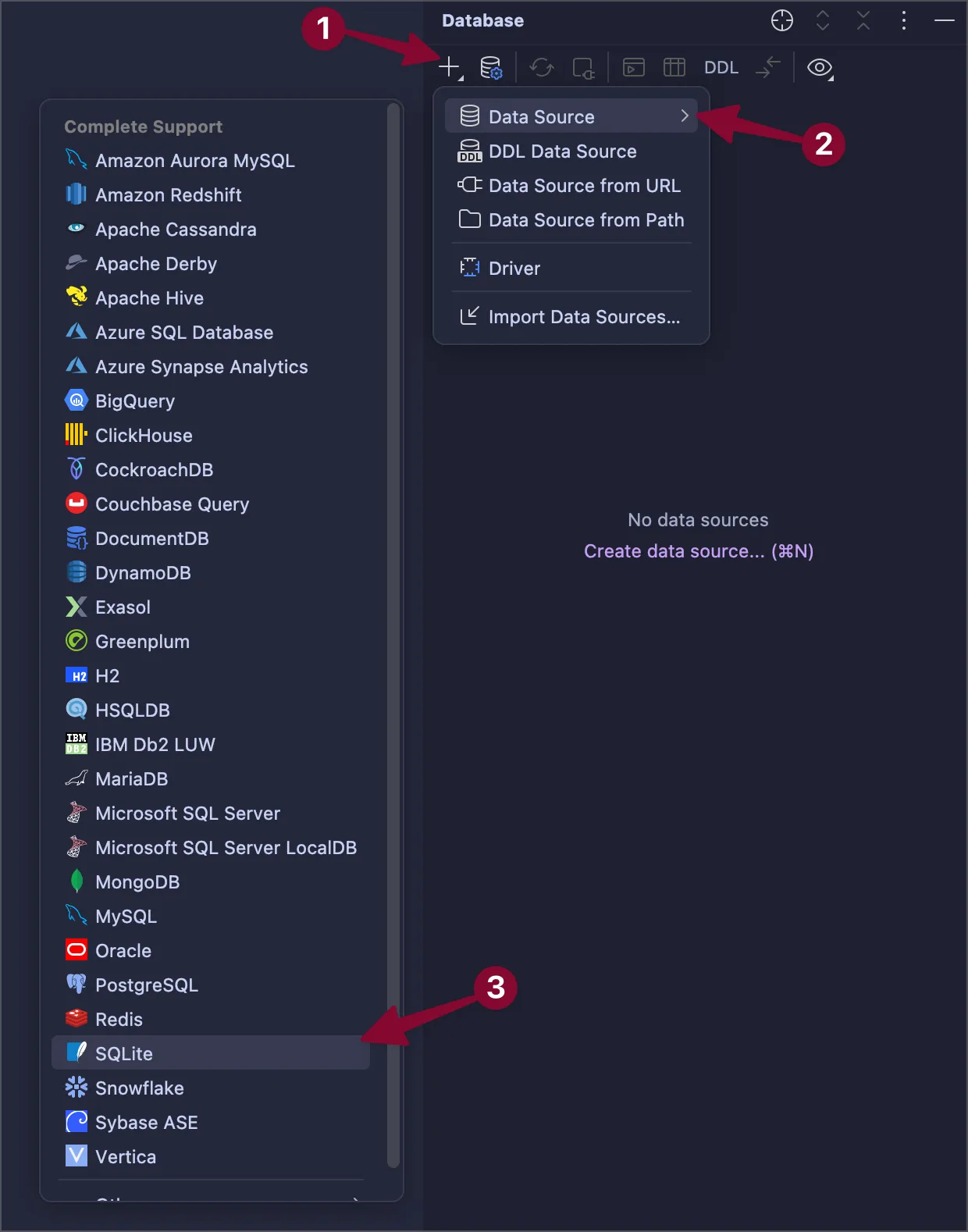
We are using SQLite in this post, but PhpStorm has support for many different data sources.
Set up the connection to the database, for SQLite, just need to point to the appropriate file in the project.
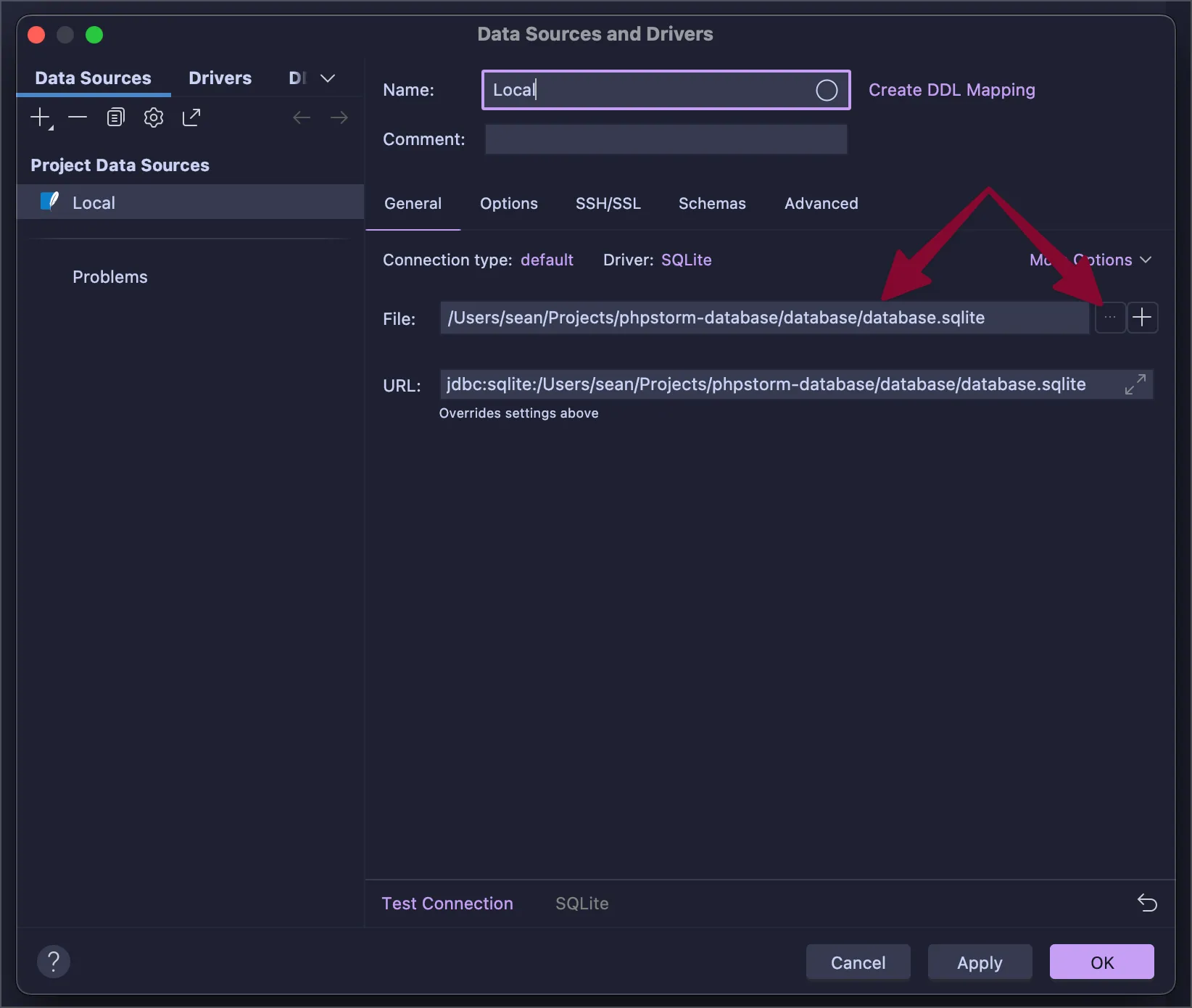
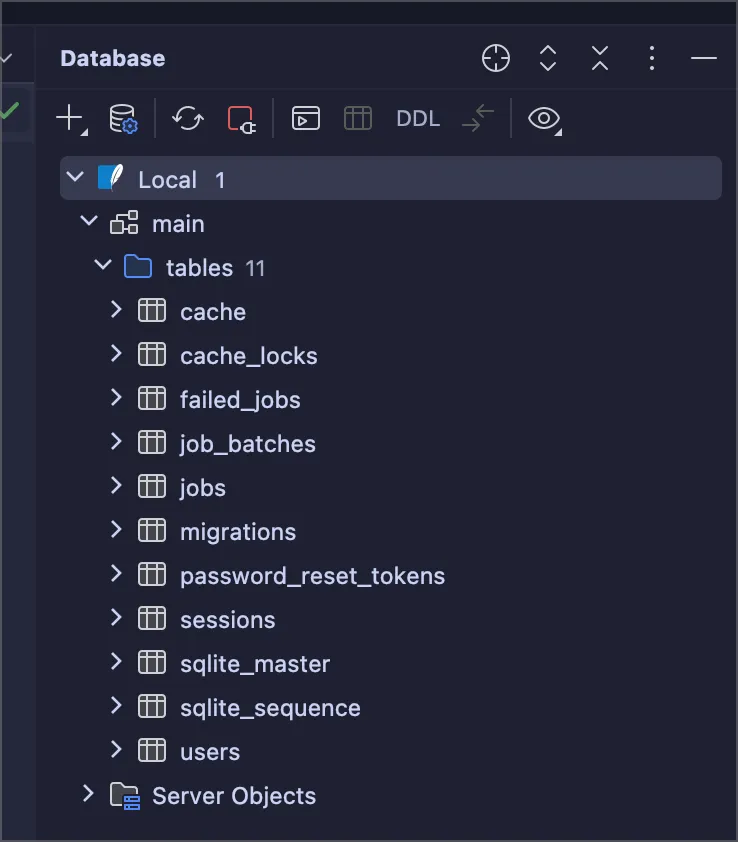
After hitting OK, we are connected to our database!
Viewing Table Data
I used the UserFactory to create users. By double-clicking the users table in the database tools, we can see all the users.
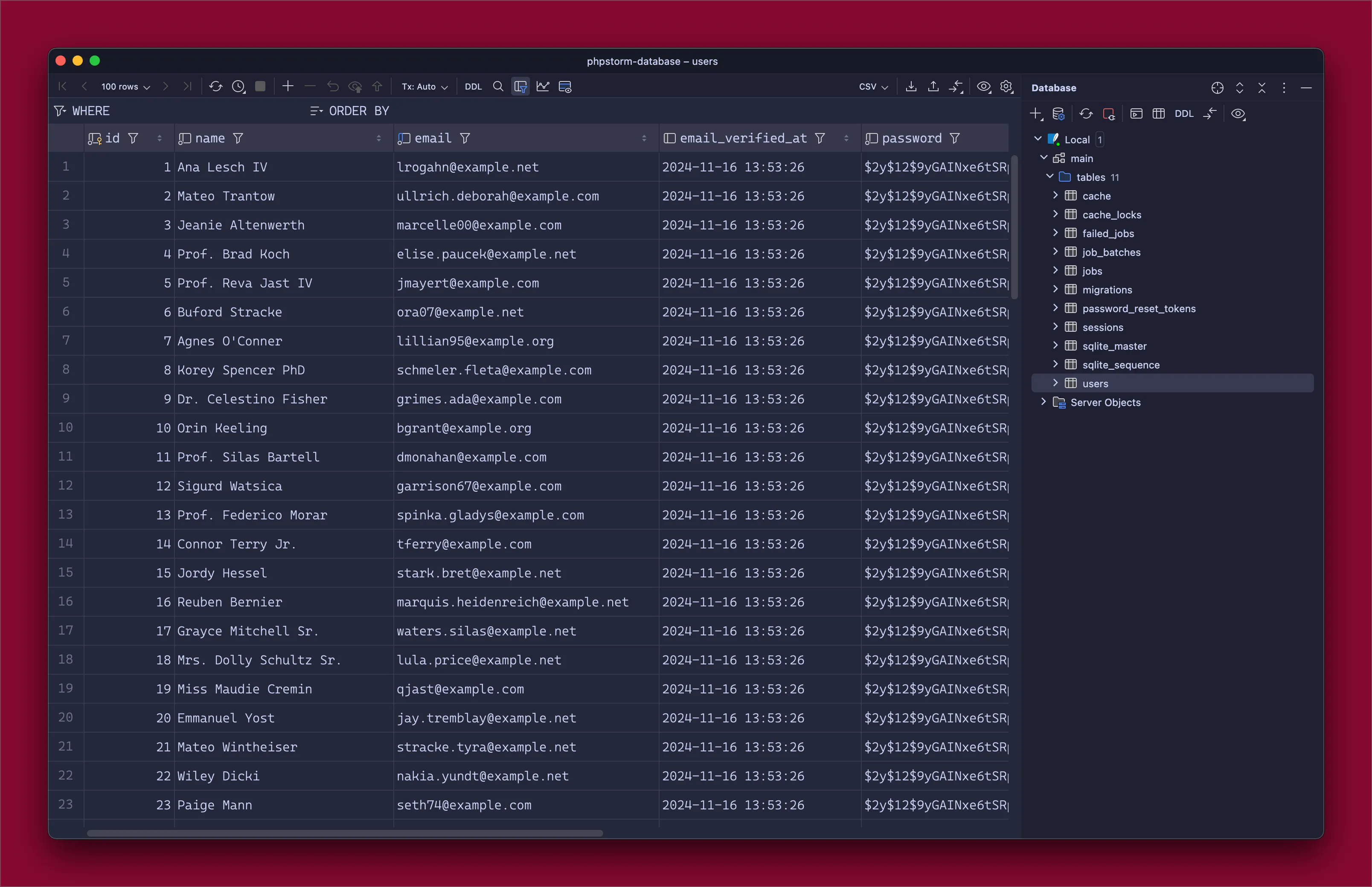
Looks like there are a lot of professors using our site! 😂
Transposing the Data
The first feature I really like is being able to transpose the data.
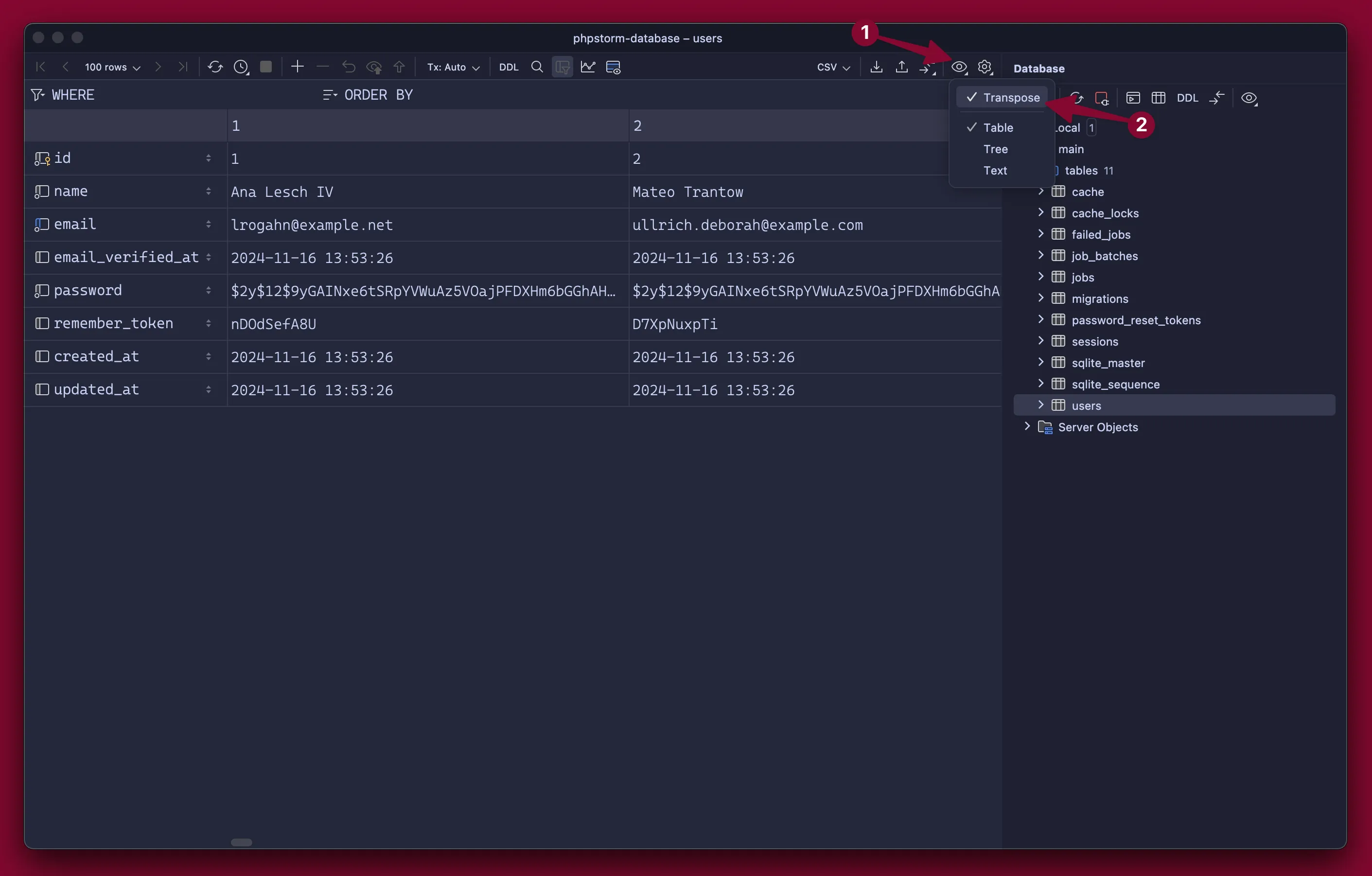
This lets you view the table with the columns as rows. It makes it really nice to see the data for individual records.
Query Console
One of the nice features of having databases right in PhpStorm, is you get the advantage of your editor, autocomplete, syntax highlighting, and even AI completion if you use something like Copilot:
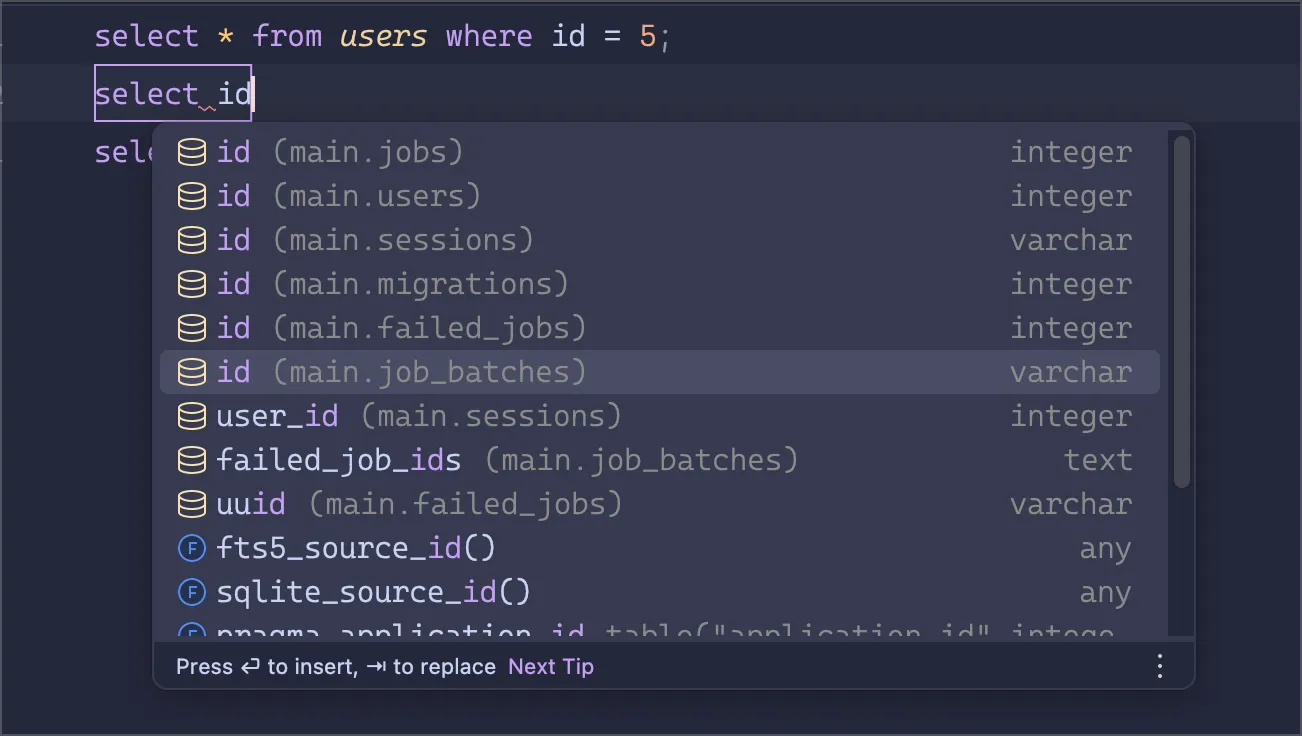
The console also persists across sessions per database, so it’s easy to just leave previous queries there if you need to re-run them later.
The console also allows defining variables that can be modified each time the query is run:
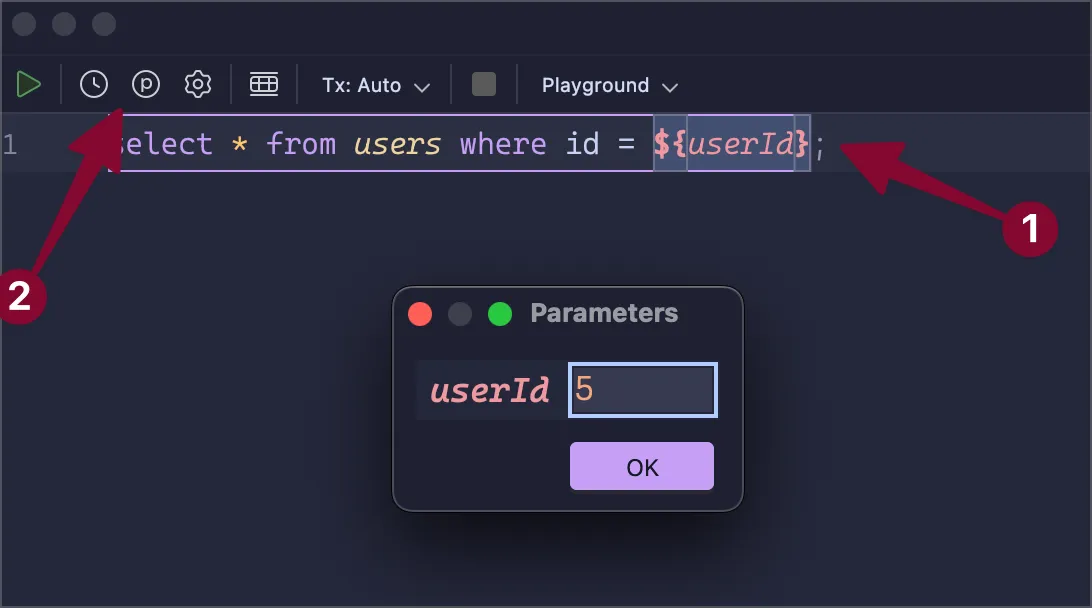
You can refer to the PhpStorm docs for more information about using parameters: User Parameters | PhpStorm Documentation.
Data Extractors
Data extractors change how copied data is handled. It allows copying rows and columns as a CSV, JSON, Markdown, or even custom extractors.
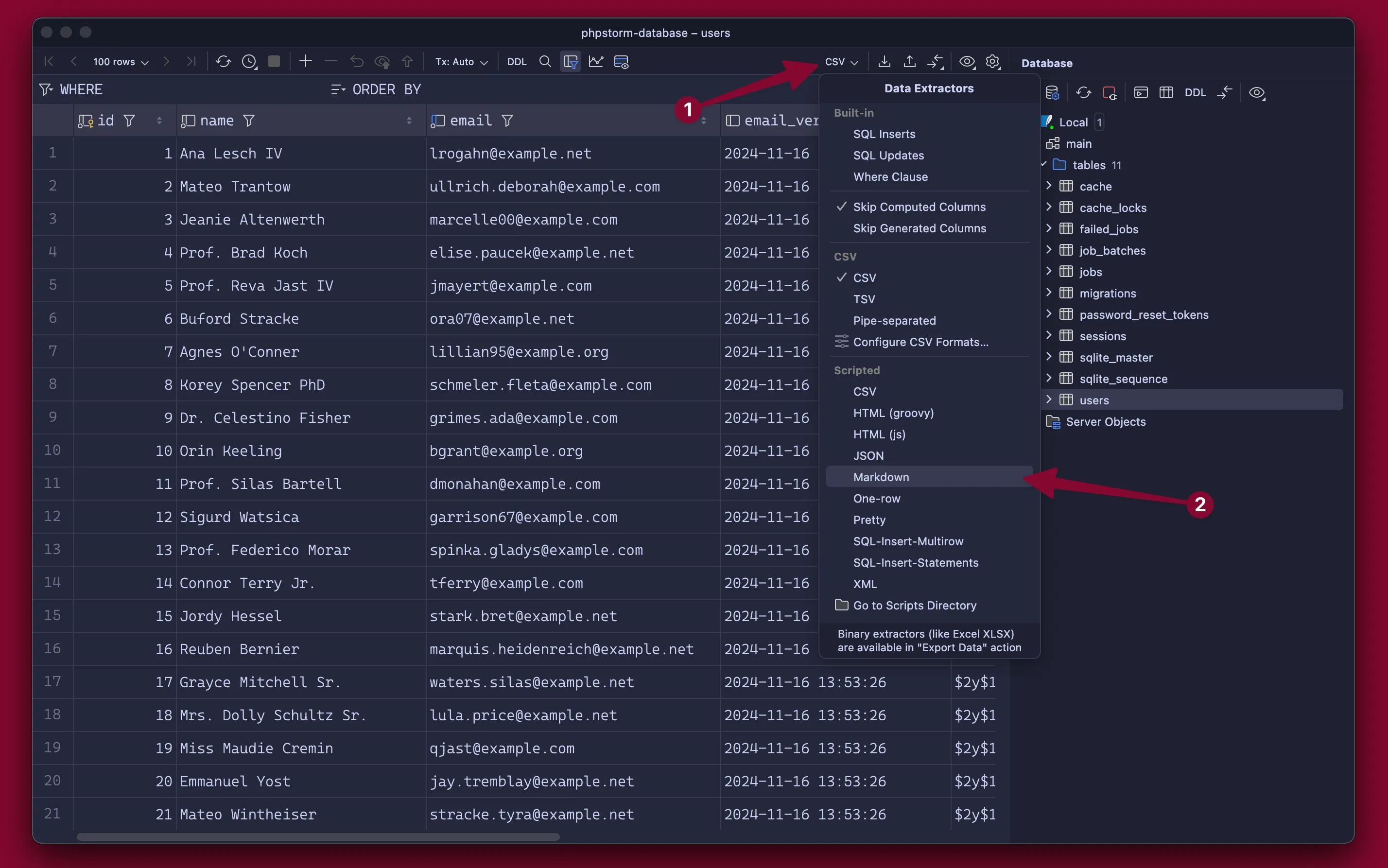
For example, if we select Markdown, then select data, copy and paste it, we get a nicely formatted Markdown table in the clipboard.
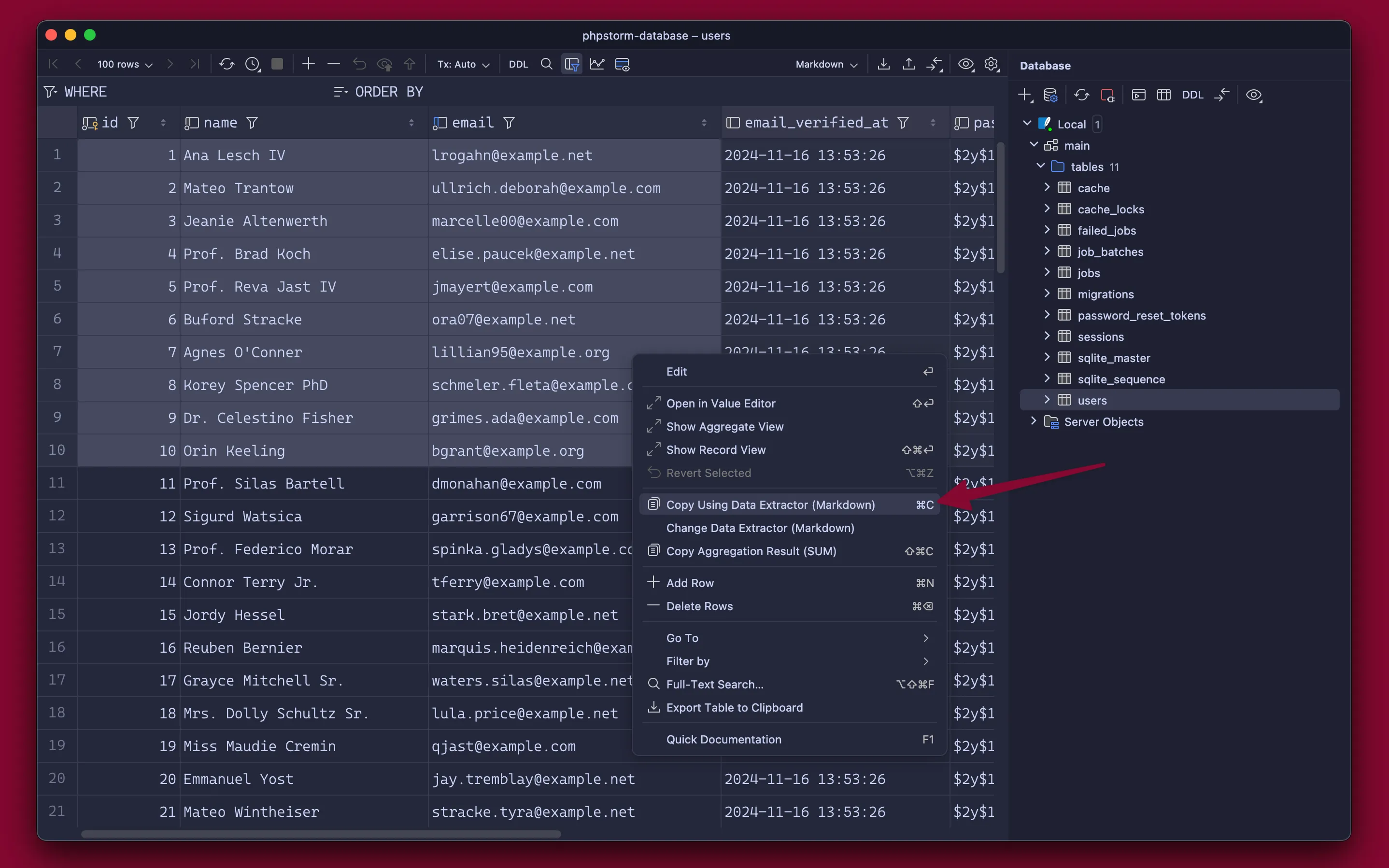
| id | name | email |
| :--- | :--- | :--- |
| 1 | Ana Lesch IV | lrogahn@example.net |
| 2 | Mateo Trantow | ullrich.deborah@example.com |
| 3 | Jeanie Altenwerth | marcelle00@example.com |
| 4 | Prof. Brad Koch | elise.paucek@example.net |
| 5 | Prof. Reva Jast IV | jmayert@example.com |
| 6 | Buford Stracke | ora07@example.net |
| 7 | Agnes O'Conner | lillian95@example.org |
| 8 | Korey Spencer PhD | schmeler.fleta@example.com |
| 9 | Dr. Celestino Fisher | grimes.ada@example.com |
| 10 | Orin Keeling | bgrant@example.org |
If you’ve used Laravel’s job queue and ever needed to retry a lot of jobs, you have to use something like the following command:
php artisan queue:retry 825d691e-8a75-403a-98d4-afc0da6474c0 565faa3f-dad4-40c2-b0d5-cf9c783f6643 7aec1085-11a8-441d-8218-d65f5f60382aThis retries three jobs using their UUID from the failed_jobs table. With a custom data extractor, we can easily copy the UUID’s from the table in the proper format (no quotes, no commas, one space between UUIDs).
If we use the “One-row” data extractor, this gets us close, but notice it includes quotes and commas, which don’t work in the retry command.
'825d691e-8a75-403a-98d4-afc0da6474c0', '565faa3f-dad4-40c2-b0d5-cf9c783f6643', '7aec1085-11a8-441d-8218-d65f5f60382a'So, let’s create a new version of the extractor.
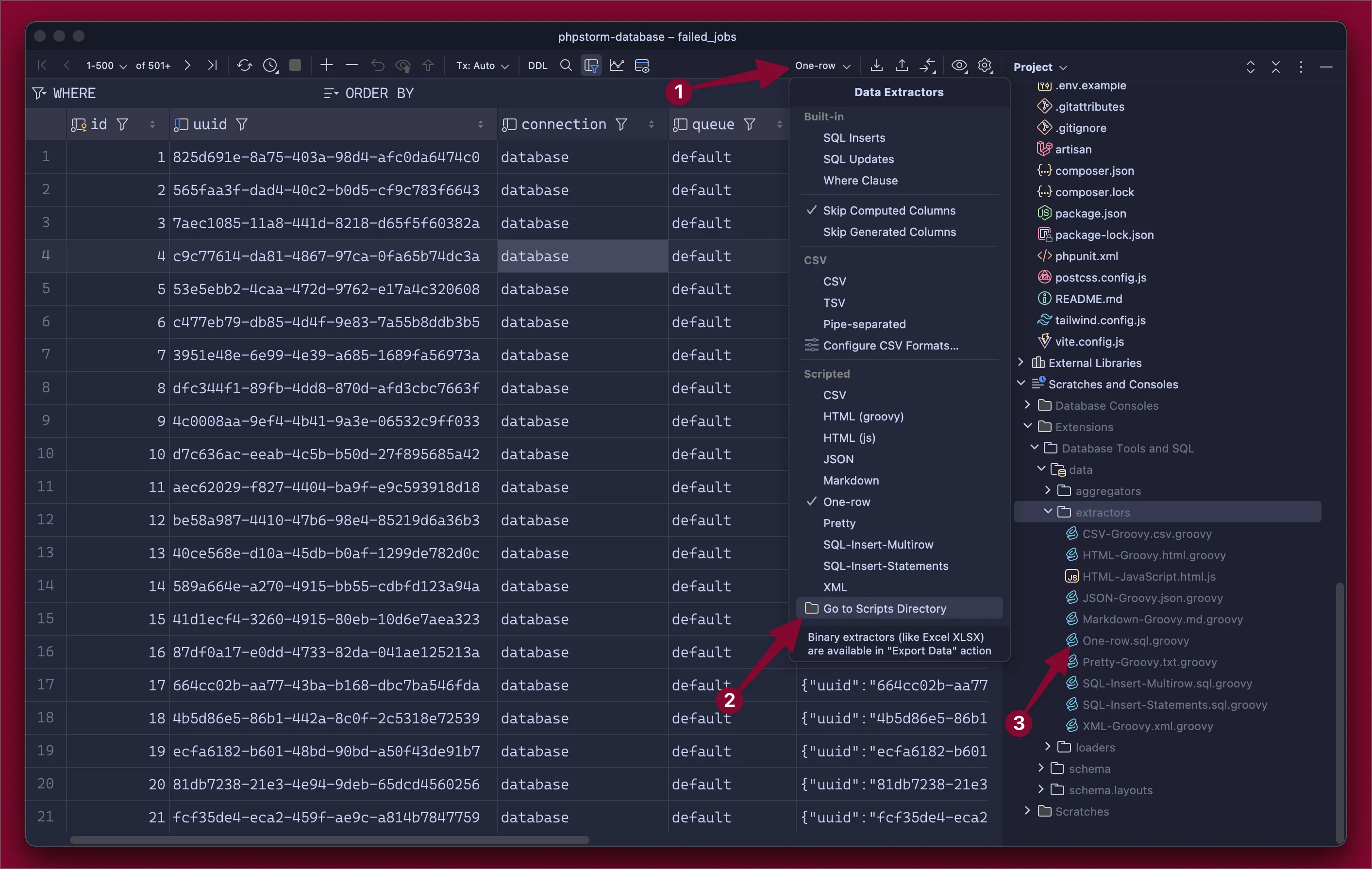
Copy the One-row.sql.groovy script, and then we can easily modify for our needs.
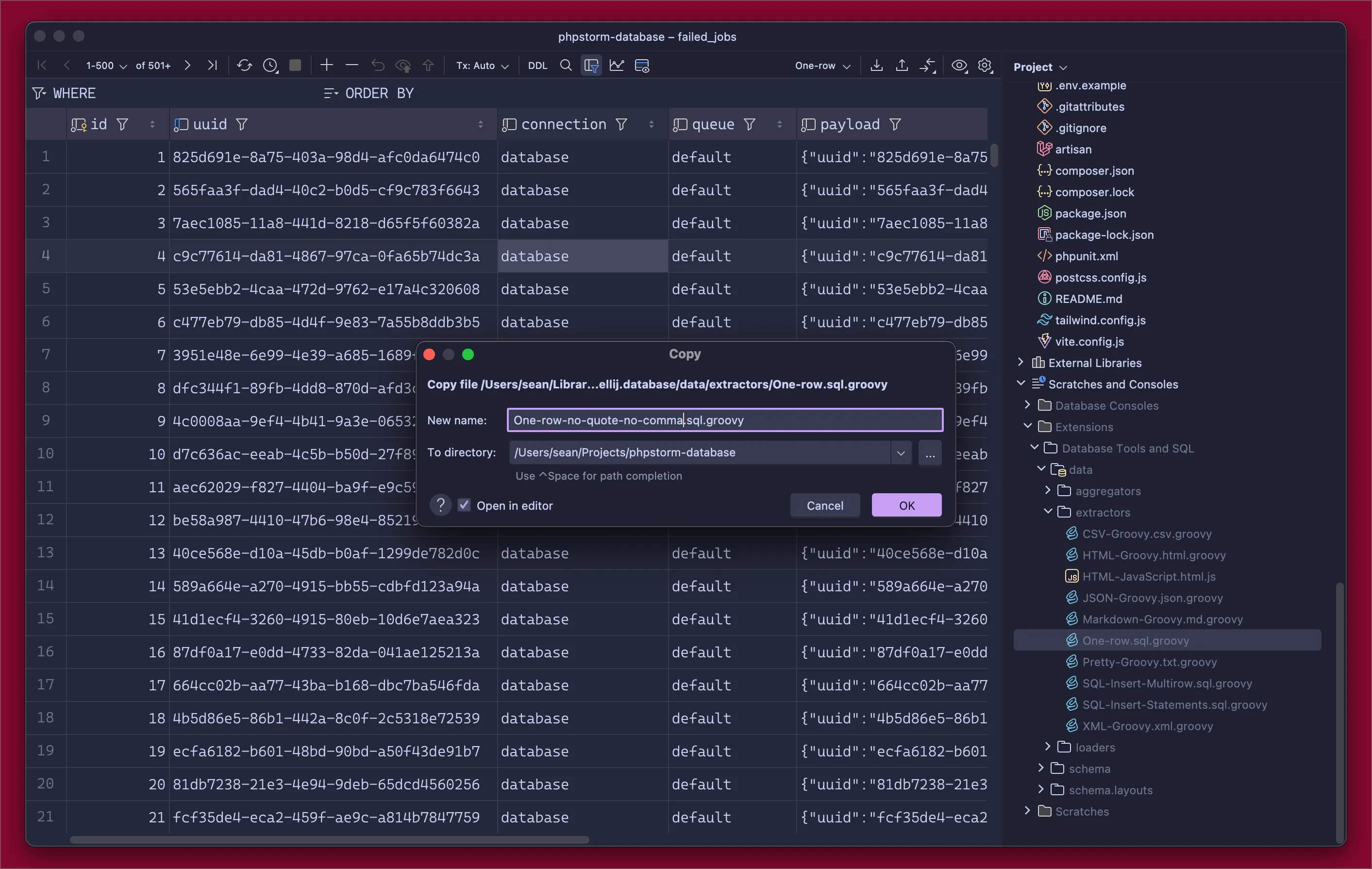
Make sure to move the new file into the
extractorsfolder so PhpStorm can find it.
It might look complicated, but all we really need to do is change the separator and quote to a space and empty, respectively.
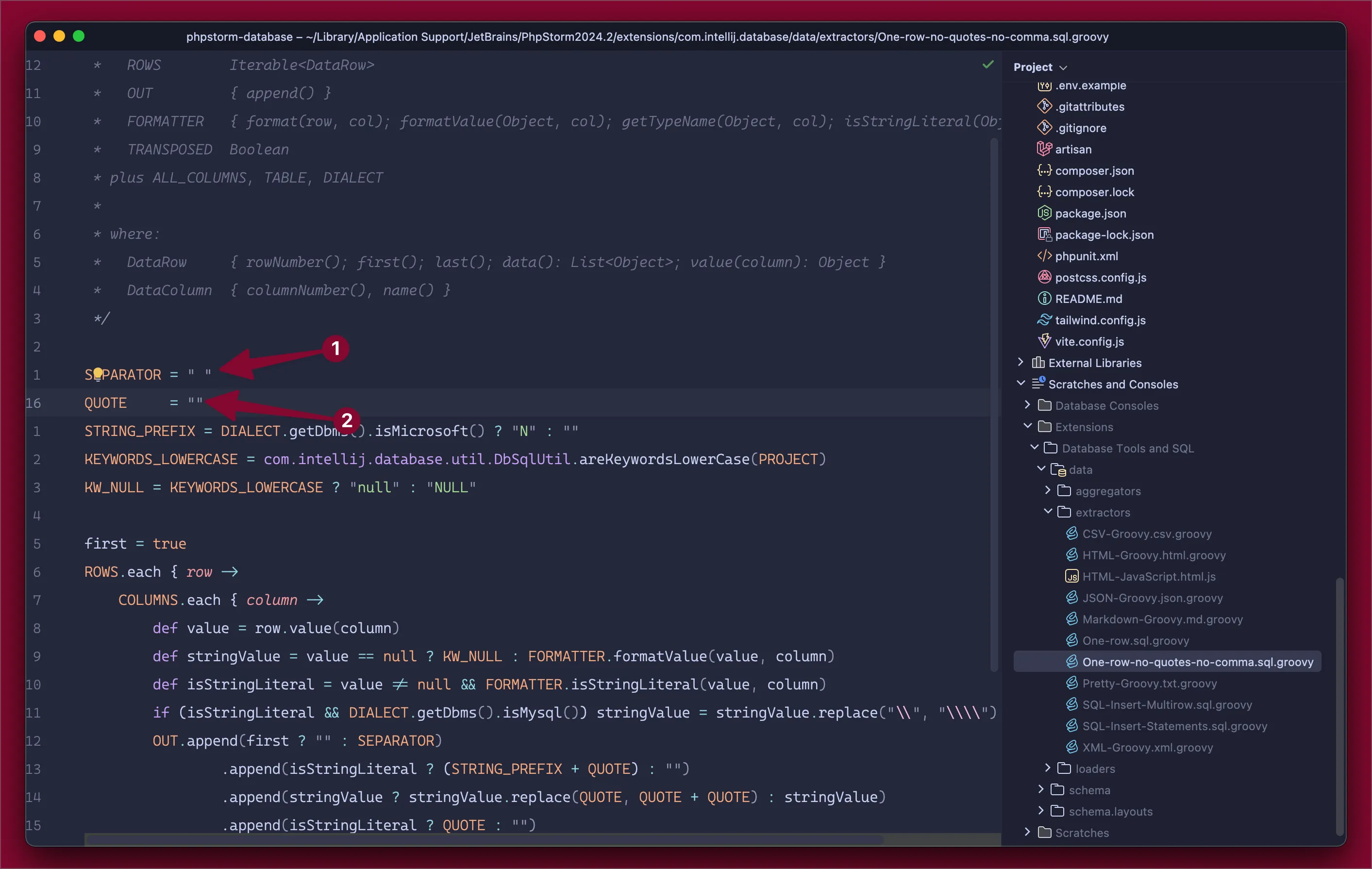
Now, if we select our new extractor and copy the UUIDs, we get the format we require for the command.
825d691e-8a75-403a-98d4-afc0da6474c0 565faa3f-dad4-40c2-b0d5-cf9c783f6643 7aec1085-11a8-441d-8218-d65f5f60382aDiagrams
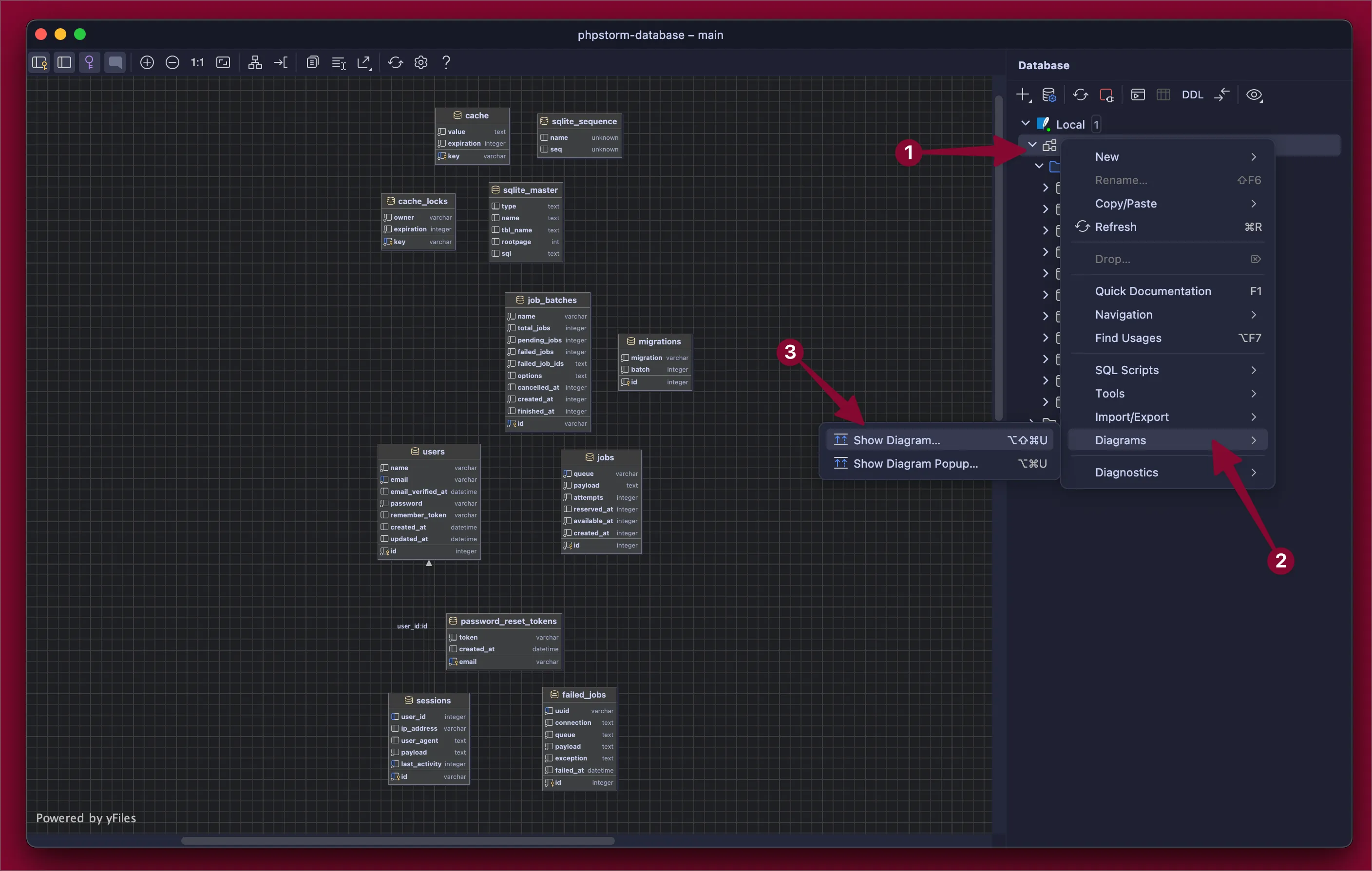
The last feature I will discuss in this article is auto-generated database diagrams. For example, to create a diagram for our entire database, select the database and choose diagrams.
Final Thoughts
PhpStorm is extremely powerful and offers a ton of different features and tools. I keep learning new things all the time, especially with the database tools. I highly recommend further exploring the database tools on your own to help refine your workflows.
Let me know if you have any other helpful tips about the database features in PhpStorm or any questions I can help answer. Thanks for reading!